File Processing (IB CS B2.5): Reading, Writing and Appending to Files
IB CS B2.5 explained: file access modes (read, write, append), the open-process-close lifecycle, error handling, and reading line by line, with a worked example.

Most programs need to remember things after they close. A high-score table, a list of users, a saved game: all of these survive because the data is written to a file on disk rather than kept only in memory. B2.5 is about doing exactly that, safely and in the right order. It is a practical topic, so the best way to learn it is to picture what is happening to the file. Let's dig in.
Why do programs use files?
Variables live in memory (RAM), which is wiped the moment the program ends. A file stores data on disk, so it is still there next time the program runs. This is called persistent storage.
Think of memory as your desk: fast to work on, but cleared every evening. A file is the filing cabinet: slower to reach into, but the contents stay put. Whenever a task says "save", "load", "keep a record", or "log", a file is almost certainly involved.
What are the file access modes?
When you open a file, you tell the program what you intend to do with it by choosing a mode. Getting the mode right is the single most important decision in this topic, because the wrong one can wipe your data.
There are three you must know. Read mode (often written "r") opens the file so the program can read its contents; if the file does not exist, this raises an error. Write mode ("w") opens the file for writing and starts it fresh: if the file already exists, its previous contents are overwritten and lost. Append mode ("a") also writes, but it adds new data to the end while keeping everything that was already there.
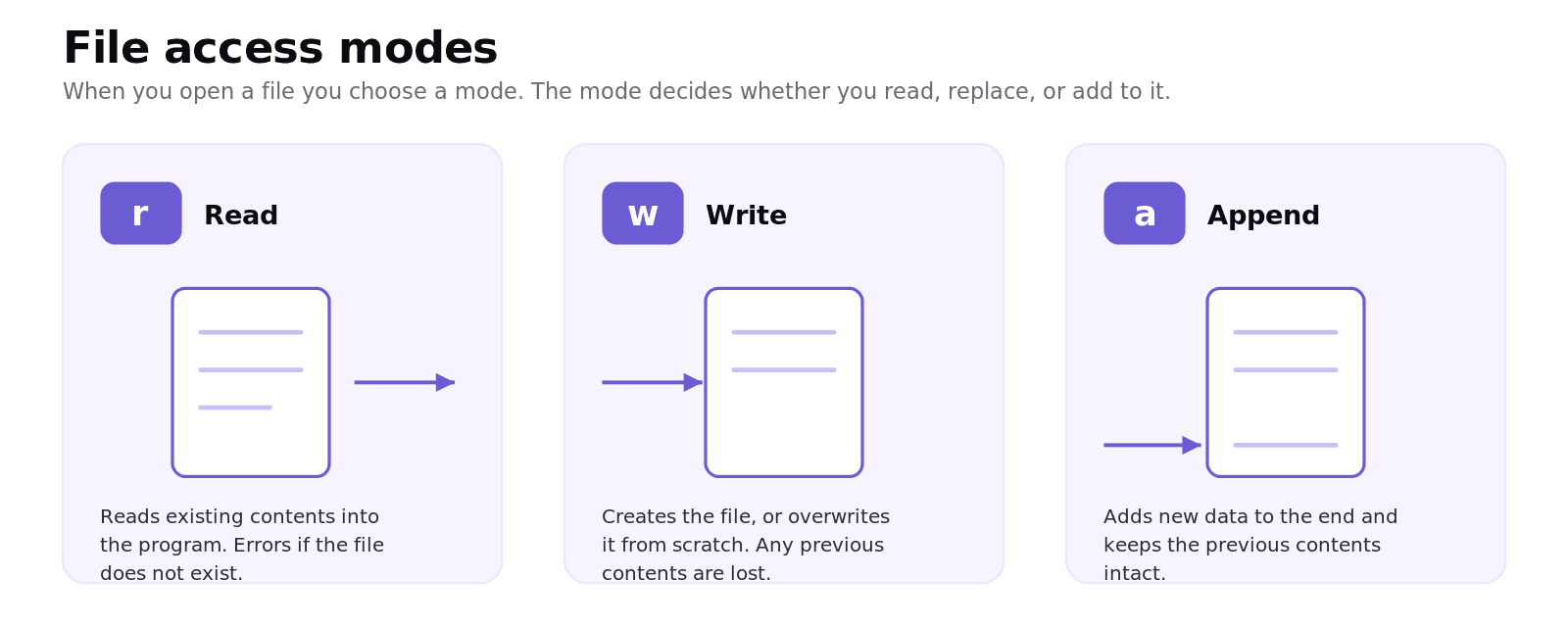
The trap to remember: write mode destroys existing content. If you want to keep what is already in the file and add to it, you need append mode.
What is the file-processing lifecycle?
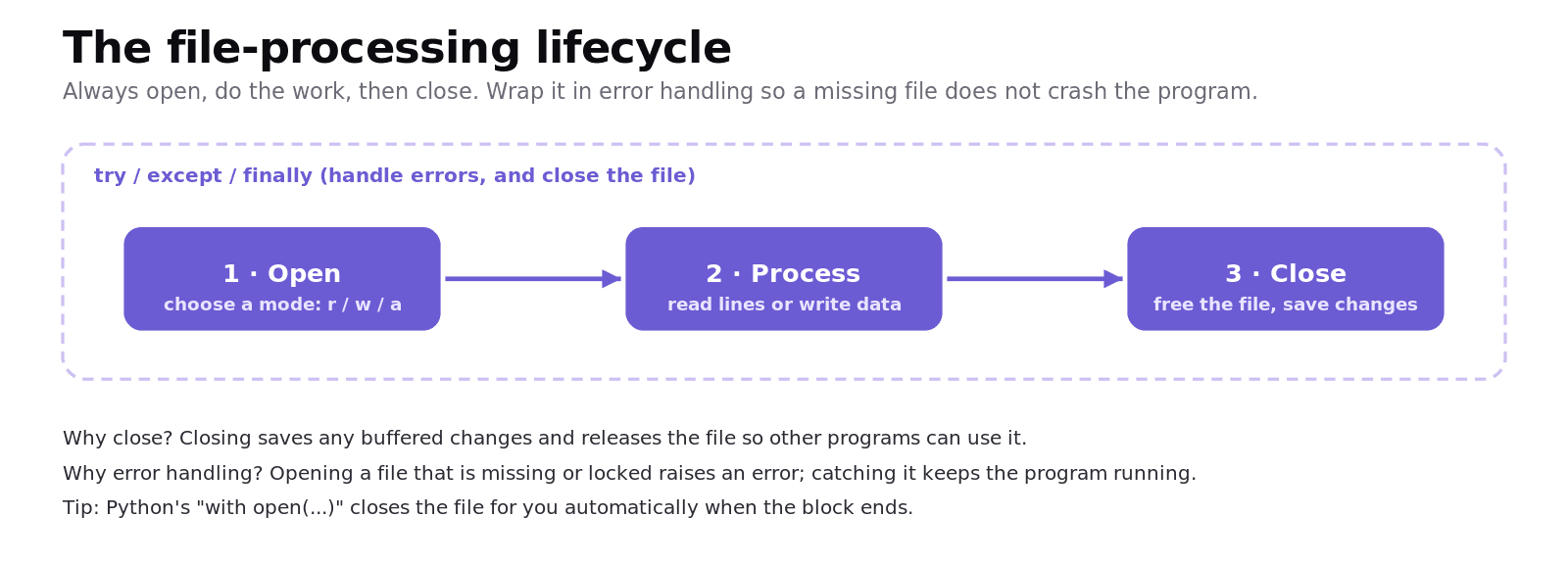
Working with a file follows a simple, three-step rhythm: open, process, close.
First you open the file in the right mode. Then you process it, either reading the data in or writing data out. Finally you close it. Closing matters more than students expect: it saves any changes still waiting to be written and releases the file so other programs can use it. Forgetting to close a file can mean your writes never actually get saved.
Because opening a file can go wrong, for example if the file is missing or locked, you wrap the work in error handling (a try ... except block in Python, or try ... catch ... finally in Java). This way a missing file produces a sensible message instead of crashing the whole program. A handy shortcut in Python is with open(...), which automatically closes the file when the block finishes, even if an error occurs.
How do you read a file line by line?
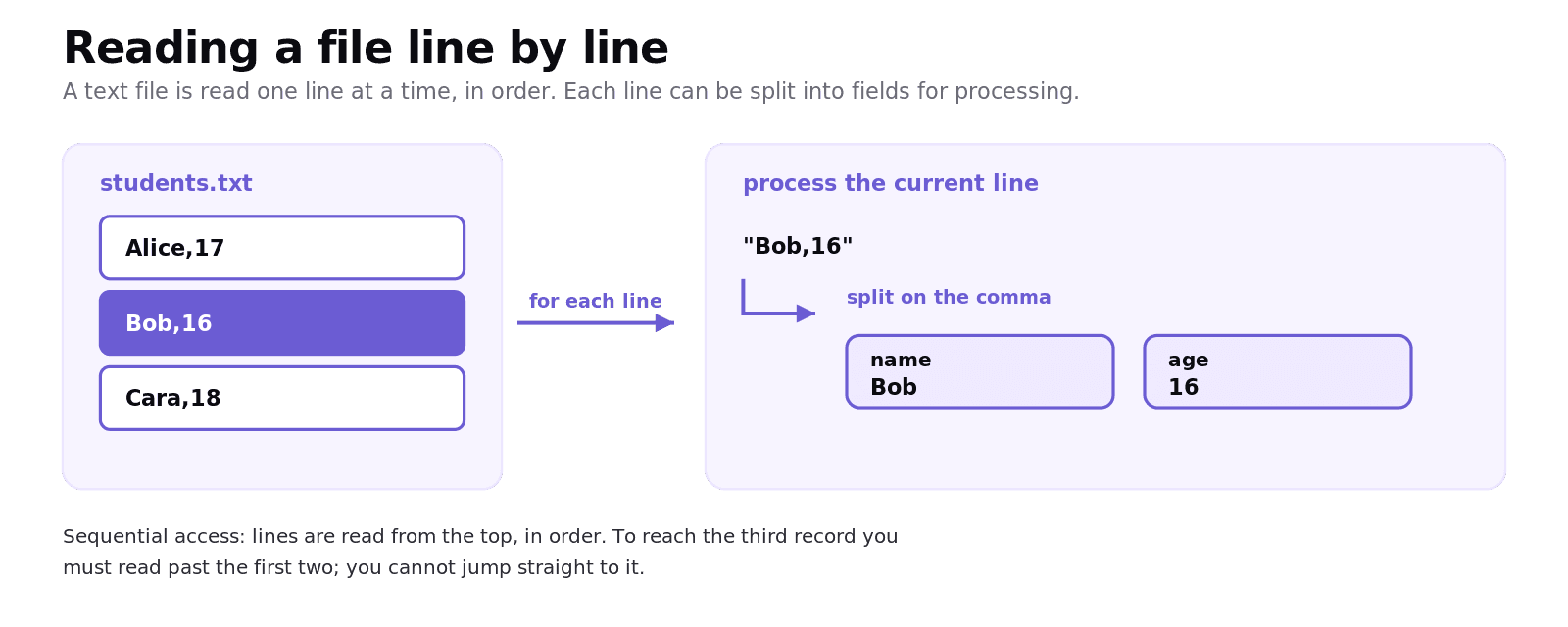
Text files are usually read one line at a time, from the top down. This is called sequential access: to reach the third record you must pass the first two; you cannot jump straight to it. Each line is often a record made of fields separated by a delimiter such as a comma, which is the idea behind a CSV (comma-separated values) file.
So a single line like Bob,16 is read in, then split on the comma into two fields: the name Bob and the age 16. Repeat that for every line and you have processed the whole file.
A worked example: append a new score
Suppose you keep a high-score file and want to add a new score without erasing the old ones. The key choice is the mode: you need append, not write.
Trace the logic. Opening in "a" keeps the two existing lines. The write adds the new line to the end. The with block closes the file for us, saving the change. If you had opened in "w" instead, the file would have been wiped first and you would be left with only Cara,1500. Same code, very different result, decided entirely by one letter.
Common exam mistakes
The classic error is using write mode when you mean append. Write mode ("w") overwrites the whole file, so if a question says "add a record" or "without losing the existing data", you almost certainly need append ("a").
Another is forgetting to close the file, or assuming data is saved before it is closed. Until you close (or leave a with block), your writes may sit in a buffer and never reach the disk.
Students also forget error handling. Reading a file that does not exist raises an error; questions often expect you to catch it with try ... except and respond gracefully.
Finally, watch the sequential nature of reading. You read a text file from the start, in order. You cannot skip to a particular line without reading the ones before it, so plan your loop accordingly.
Quick recap
Files give persistent storage, surviving after the program closes, unlike variables in memory. Read mode reads existing data; write mode overwrites from scratch; append mode adds to the end. Always follow open, process, close, and wrap file work in error handling. Closing a file saves buffered changes and releases it; Python's "with open" closes it for you. Text files are read sequentially, line by line, and each line can be split into fields.
Frequently asked questions
What is the difference between write mode and append mode? Write mode ("w") opens a file and starts it fresh, overwriting any existing contents. Append mode ("a") also writes, but it adds the new data to the end of the file while keeping everything that was already there. Use append when you must not lose existing data.
Why do you need to close a file? Closing a file saves any changes that are still waiting in a buffer and releases the file so other programs can use it. If you do not close a file, your writes may never actually be saved to disk. Python's "with open" closes the file automatically.
What is the difference between storing data in a variable and in a file? A variable is stored in memory and is lost when the program ends. A file is stored on disk and persists after the program closes, which is called persistent storage. You use files whenever data needs to survive between runs of the program.
What does it mean to read a file sequentially? Sequential access means the file is read from the beginning, one line at a time, in order. To reach a particular record you must read past the records before it; you cannot jump straight to it. Text files are normally processed this way.
Why should file operations use error handling? Opening a file can fail, for example if the file is missing or locked, which raises an error. Wrapping file operations in a try and except (or try, catch, finally) block lets the program respond with a sensible message and keep running instead of crashing.
What is a CSV file? A CSV (comma-separated values) file stores each record on its own line, with the fields separated by commas. When you read a line such as "Bob,16", you split it on the comma to get the separate fields, here a name and an age. CSV is a simple, common format for tabular data.
Looking for a printable summary? Grab the File Processing (IB CS B2.5): Reading, Writing and Appending to Files, a three-page knowledge organiser covering everything above.
Looking for an IB Computer Science tutor?
Hi, I'm Yuness, the tutor behind Shuttle Learning. I work one to one with IB Computer Science students at SL and HL, and I deliberately take on only a handful each year so every student gets my full attention. Most go on to earn the 6s and 7s they were aiming for, in the final exams and the IA alike.
If you would like that kind of support, book a free 15-minute call and tell me what you are stuck on. You can press BOOK A LESSON .